Turn film scans into finished photographs.
EmberFilm converts your negatives, clears the dust, grades the color, and exports a whole roll as 16-bit TIFFs. One standalone app for Mac and Windows, free to try.
Try for free- macOS 26 or later, Apple silicon
- Windows 10 version 17763.0 or higher, x64 PCs
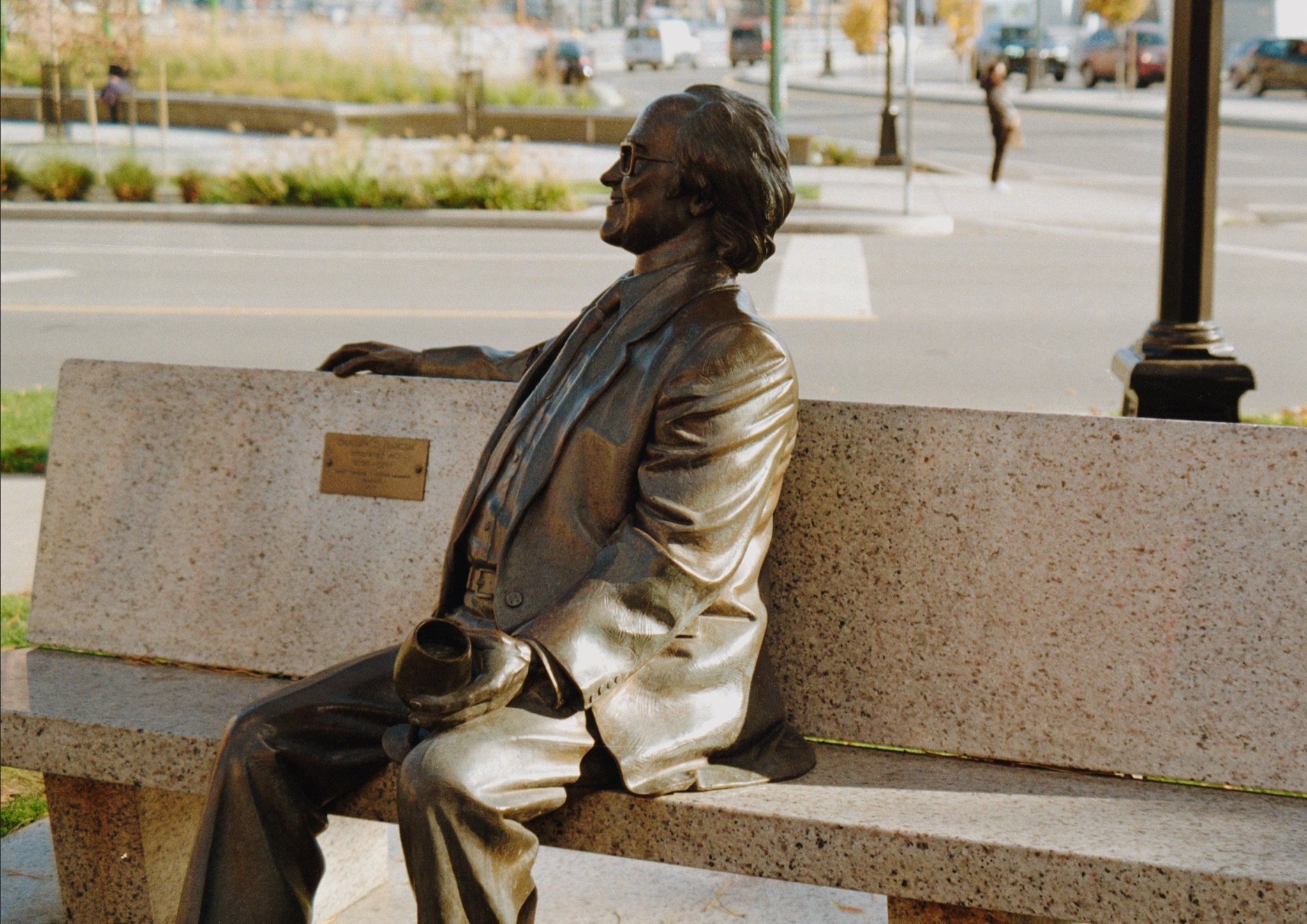
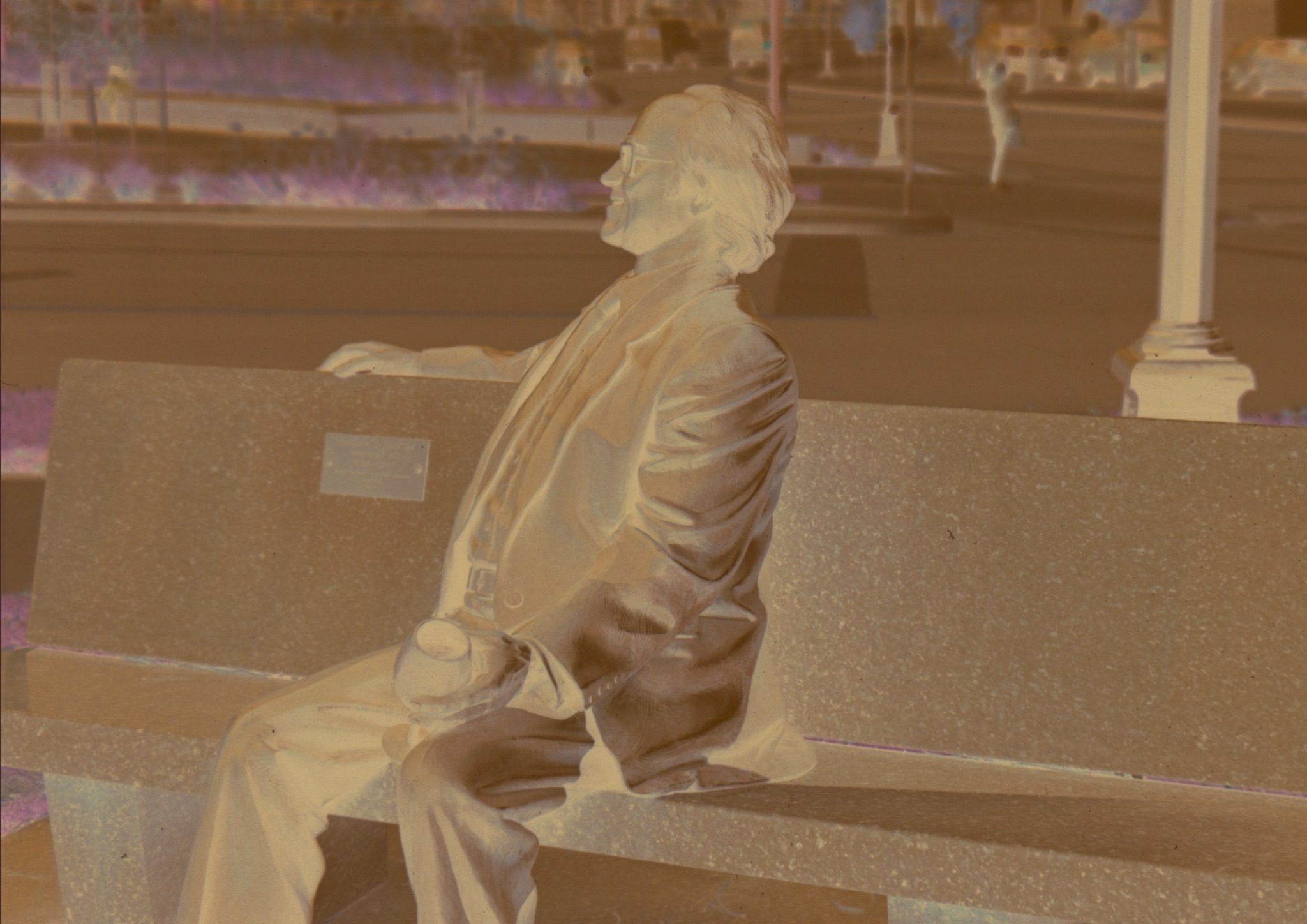
Drag across the frame to compare the scan with the conversion.
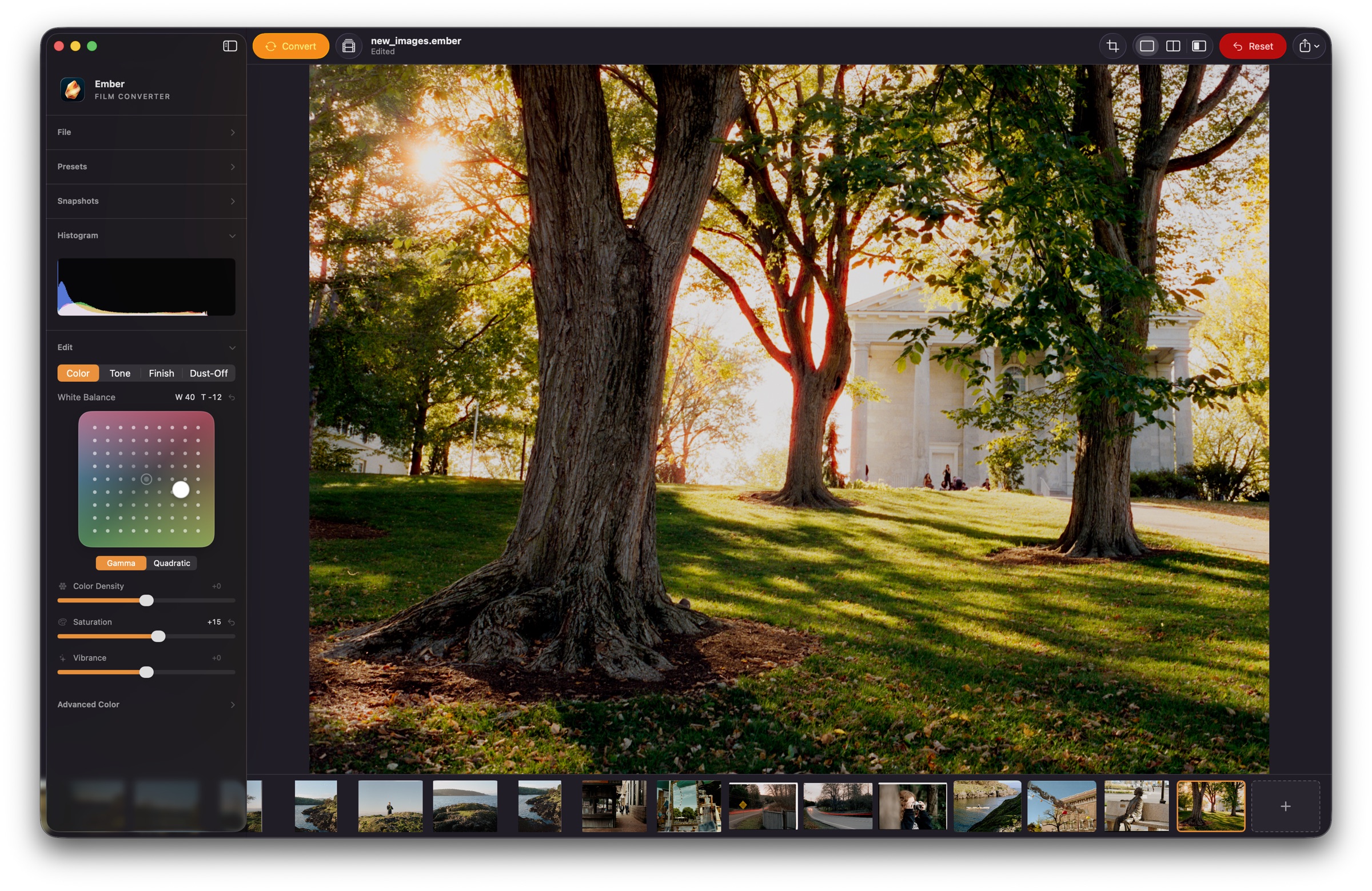
One window for the whole roll.
Color, tone, finishing, and Dust-Off sit in one sidebar, and the roll stays in the strip below. Every edit is non-destructive.
From scan to finished frame.
Watch one frame go through conversion, color correction, retouching, and final color without leaving the app.
Everything between the scanner and the print.
EmberFilm covers the whole job, in the order a roll moves through it.
Bring scans in
- Hot folder sessionsNew
- Point EmberFilm at your scanner's output folder and each new scan is imported as soon as it finishes saving. Incoming frames can be cropped, rotated, and converted on arrival.
- Auto crop and rotateNew
- Finds all four film edges, straightens the frame, corrects perspective, and fits the nearest film format. Frames that came in sideways are turned upright.
- Multi-scan stitchingNew
- Scan a large negative in overlapping pieces and join them into one frame. Pieces are aligned to sub-pixel accuracy, exposure is matched across them, and the result is saved as a 16-bit TIFF.
Convert
- One-click conversion
- Analyzes each scan to build a film profile, sets the tonal endpoints, and applies an auto white balance, so color negative, black-and-white, and slide film all start close instead of flat.
- Roll analysis
- Treats a roll as one set and evens out exposure and color drift between frames, so the whole roll matches.
- Film density controls
- Separate film, highlight, and shadow density sliders shape the negative like photographic material instead of pushing generic brightness and contrast.
Color and tone
- Click-to-neutralize color
- Remove a color cast by clicking a shadow, a midtone, or a skin tone. A white balance pad and red/cyan, green/magenta, and blue/yellow sliders are there for the rest.
- Curves, HSL, and Punch
- Curves and HSL for precise work, plus Punch, a print-style contrast control that adds separation through the midtones without blocking up shadows or highlights.
- Print looks and LUTs
- Built-in Frontier, Noritsu, and Kodak print looks, or import any standard .cube LUT and set its intensity.
Clean up
- Dust-Off
- An AI model running entirely on your computer finds dust and scratches. Adjust the mask with a brush and eraser, then fill the defects in while keeping the grain around them.
- Infrared dust detectionNew
- If your scanner saves an infrared channel, EmberFilm can build the dust mask from it. Set the threshold and refine the mask by hand.
- Detail and noise
- Sharpen fine detail or smooth it from one control, and remove digital noise from camera scans without smearing the film grain.
Finish and export
- Ratings
- Rate frames from one to five stars with the number keys, then sort the strip by rating to bring the keepers to the front.
- Film metadata
- Record camera, lens, film stock, ISO, push or pull, and location. It is written into the exported file and travels with the image.
- Batch export
- Export a whole roll as 8 or 16-bit TIFF or JPEG with an embedded ICC profile, from a wide-gamut ProPhoto pipeline.
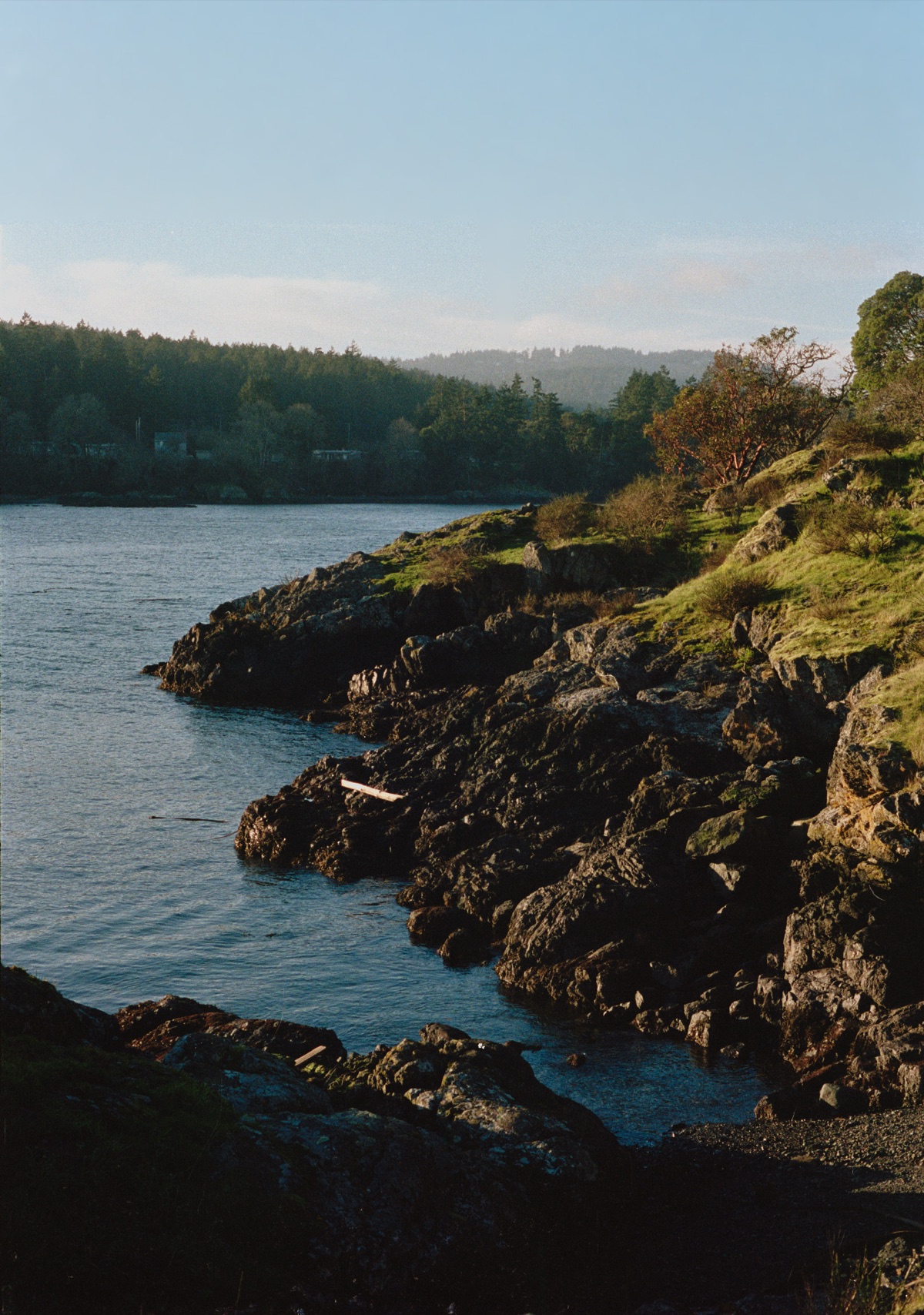
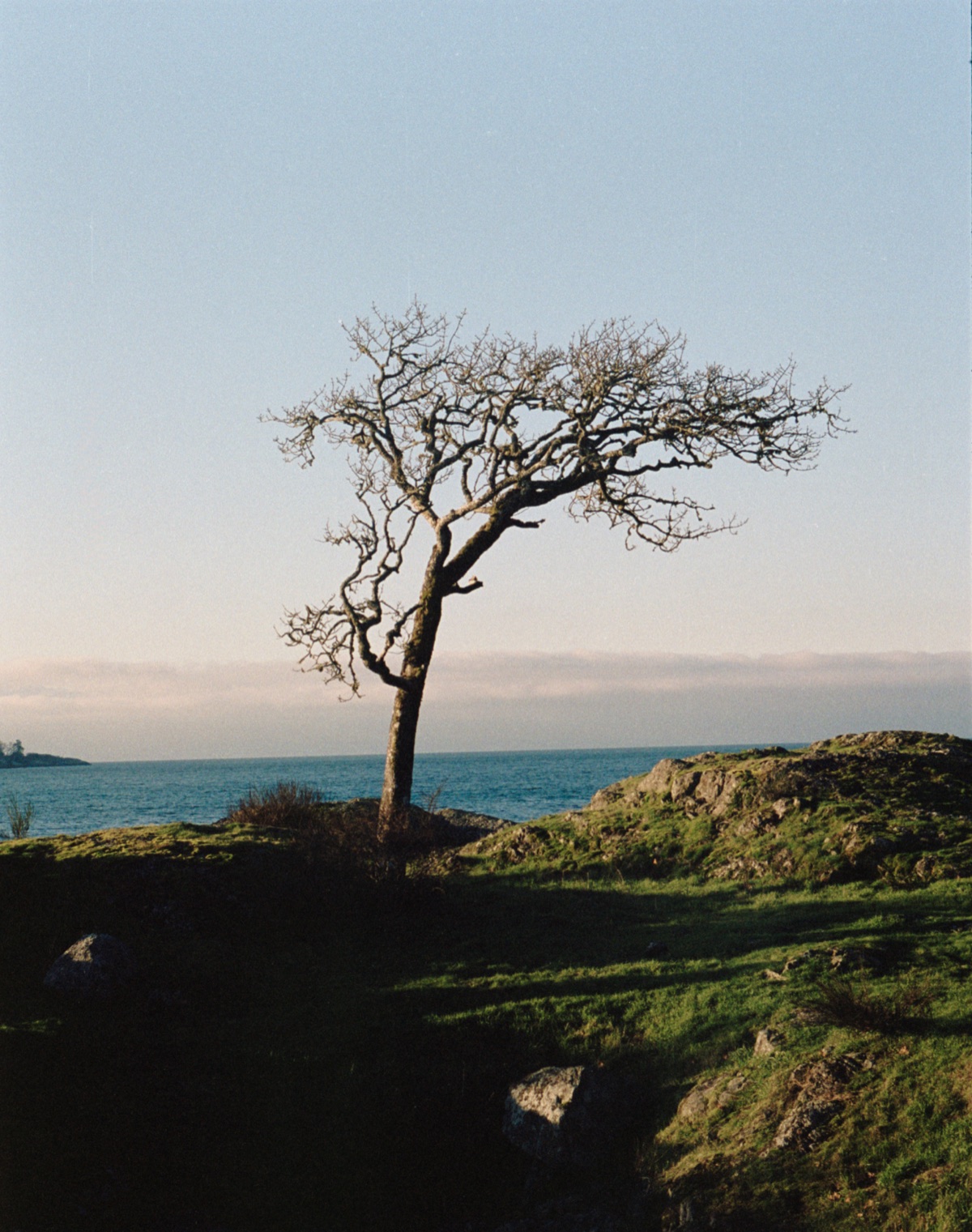
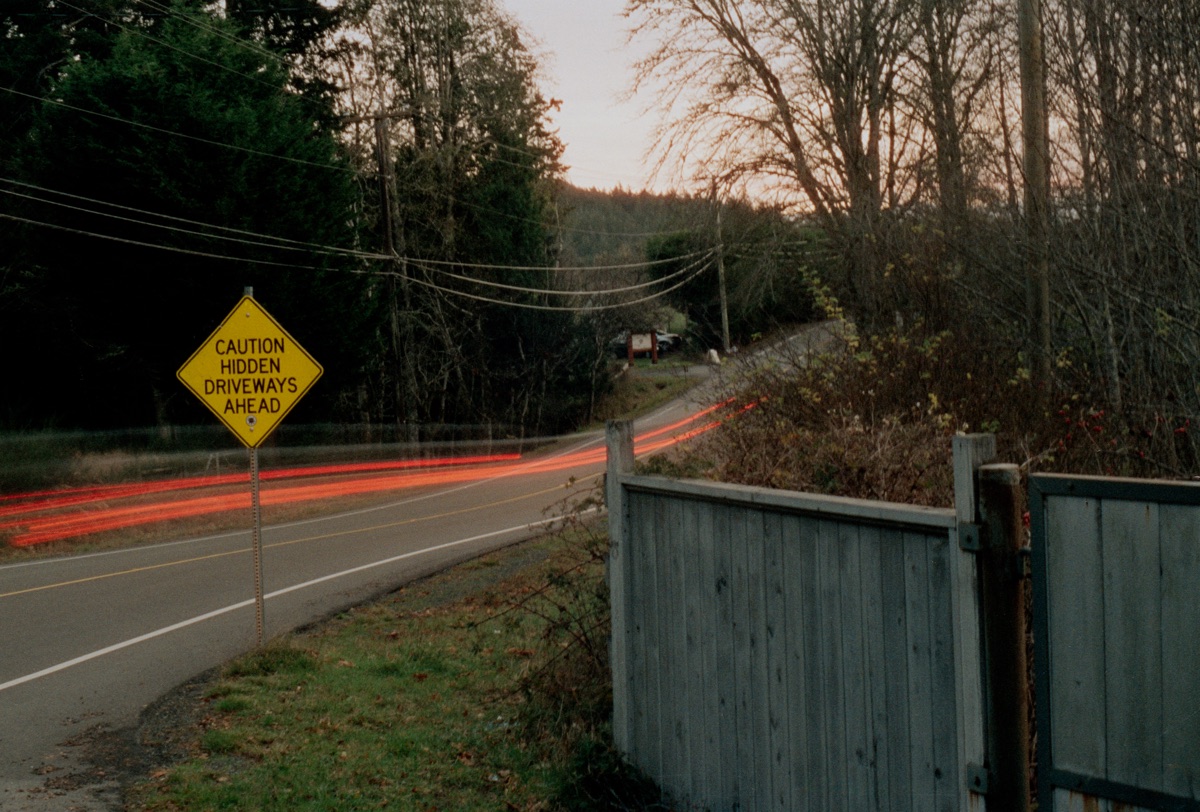
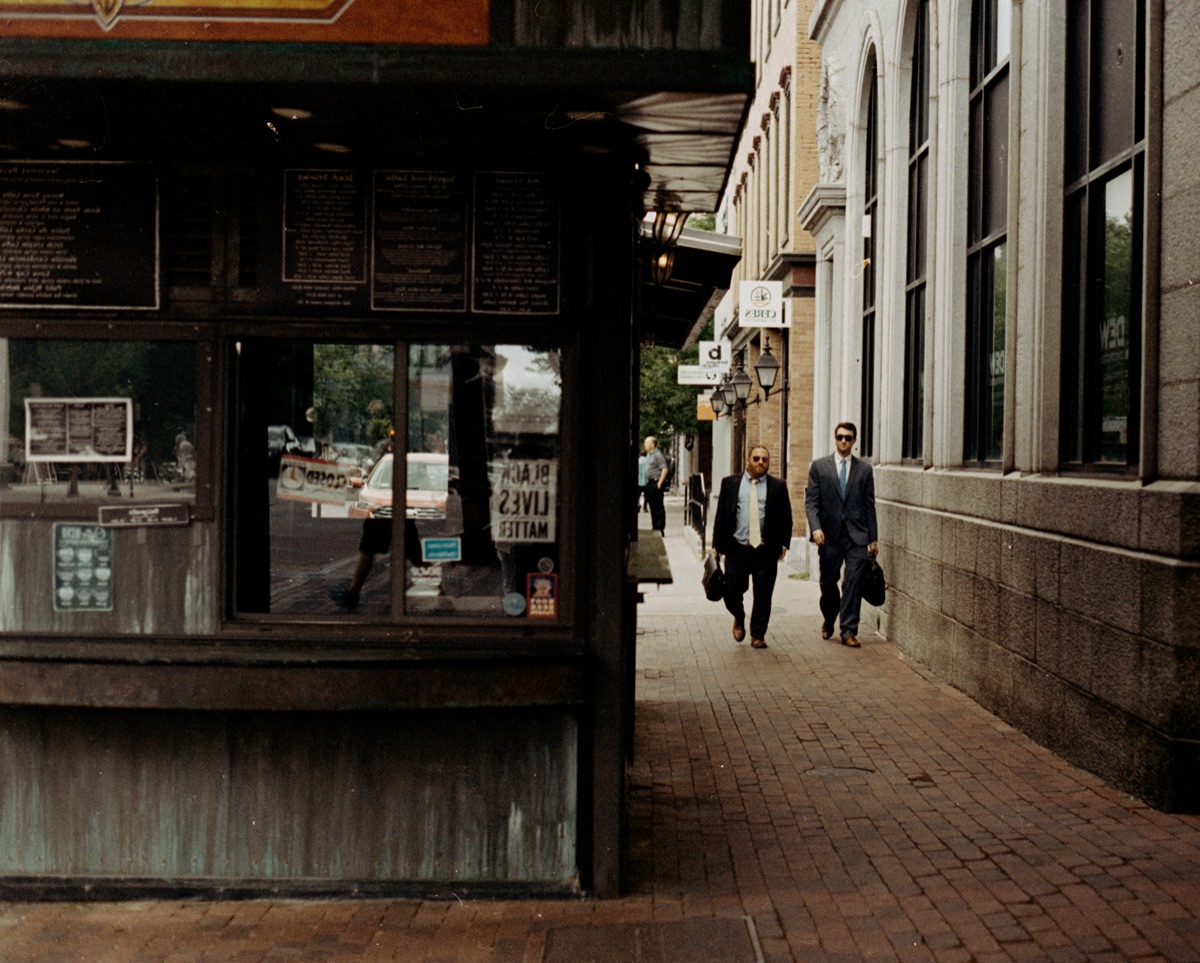
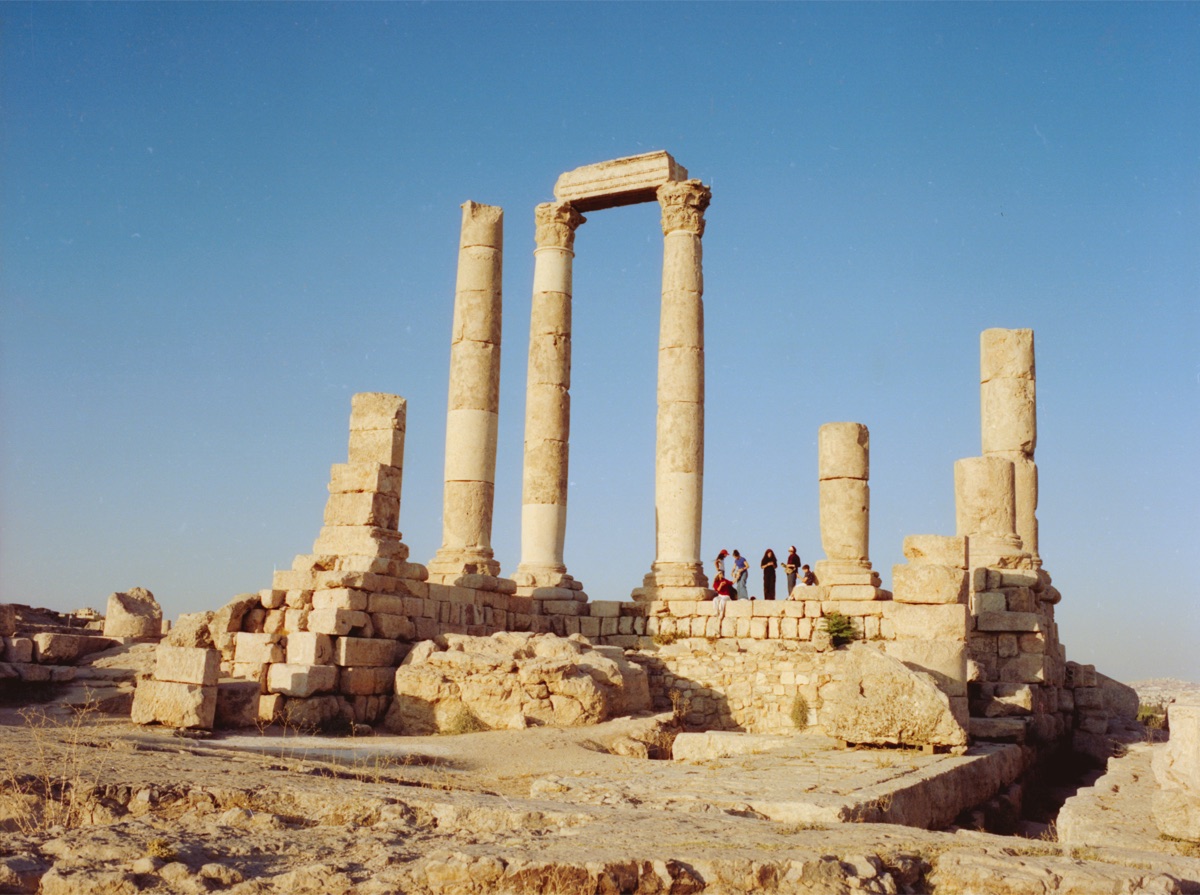
Shot on film, finished in EmberFilm.
Every frame here was converted from a scanned negative and graded in the app.
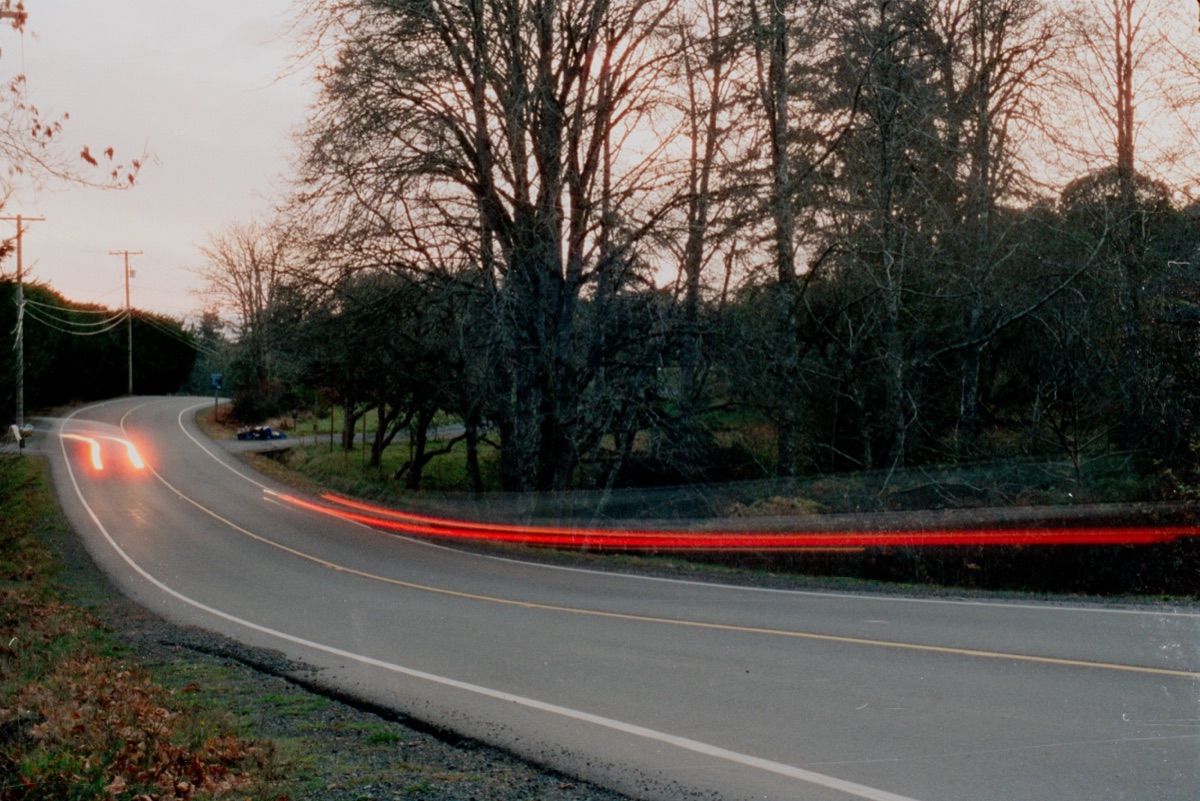
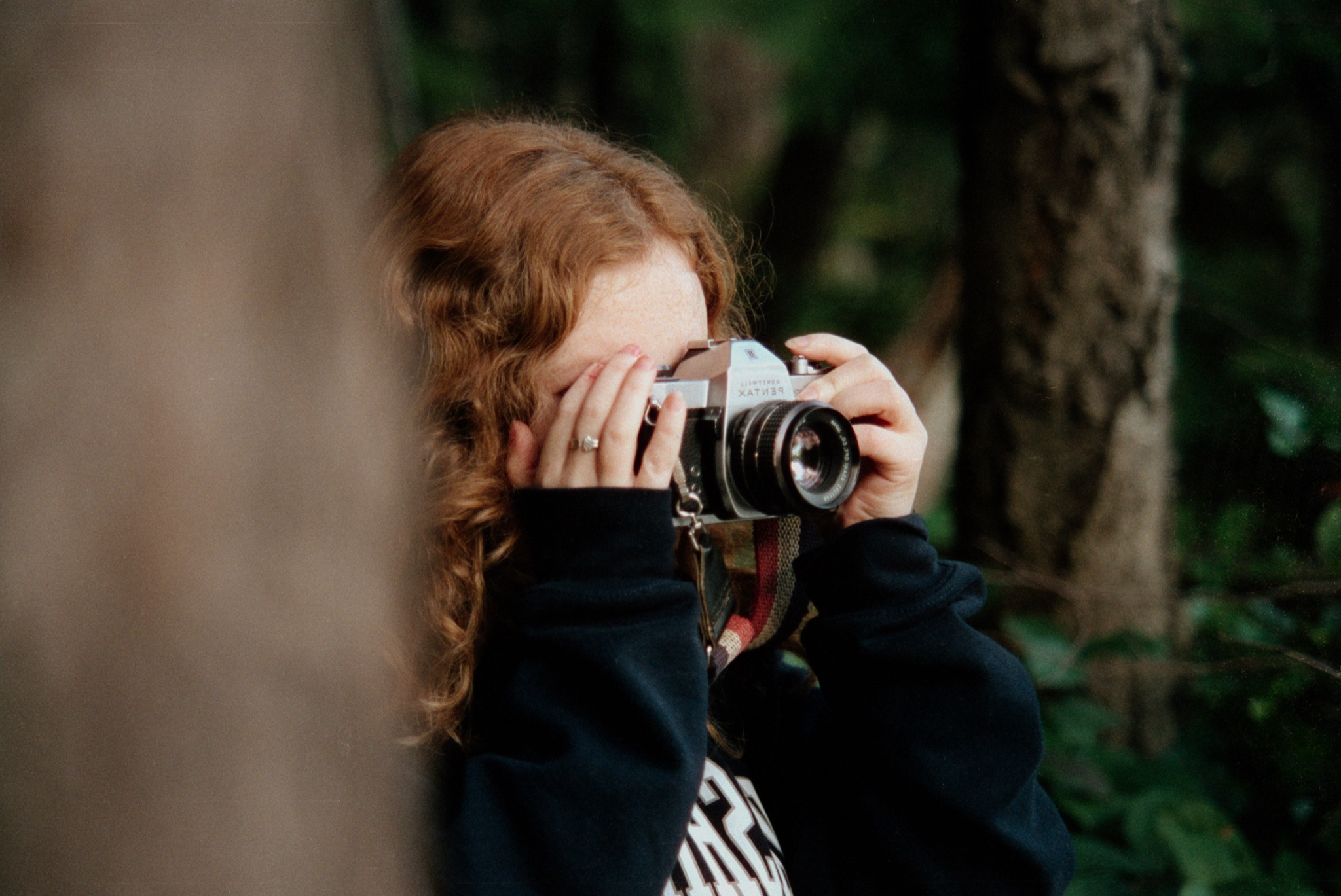
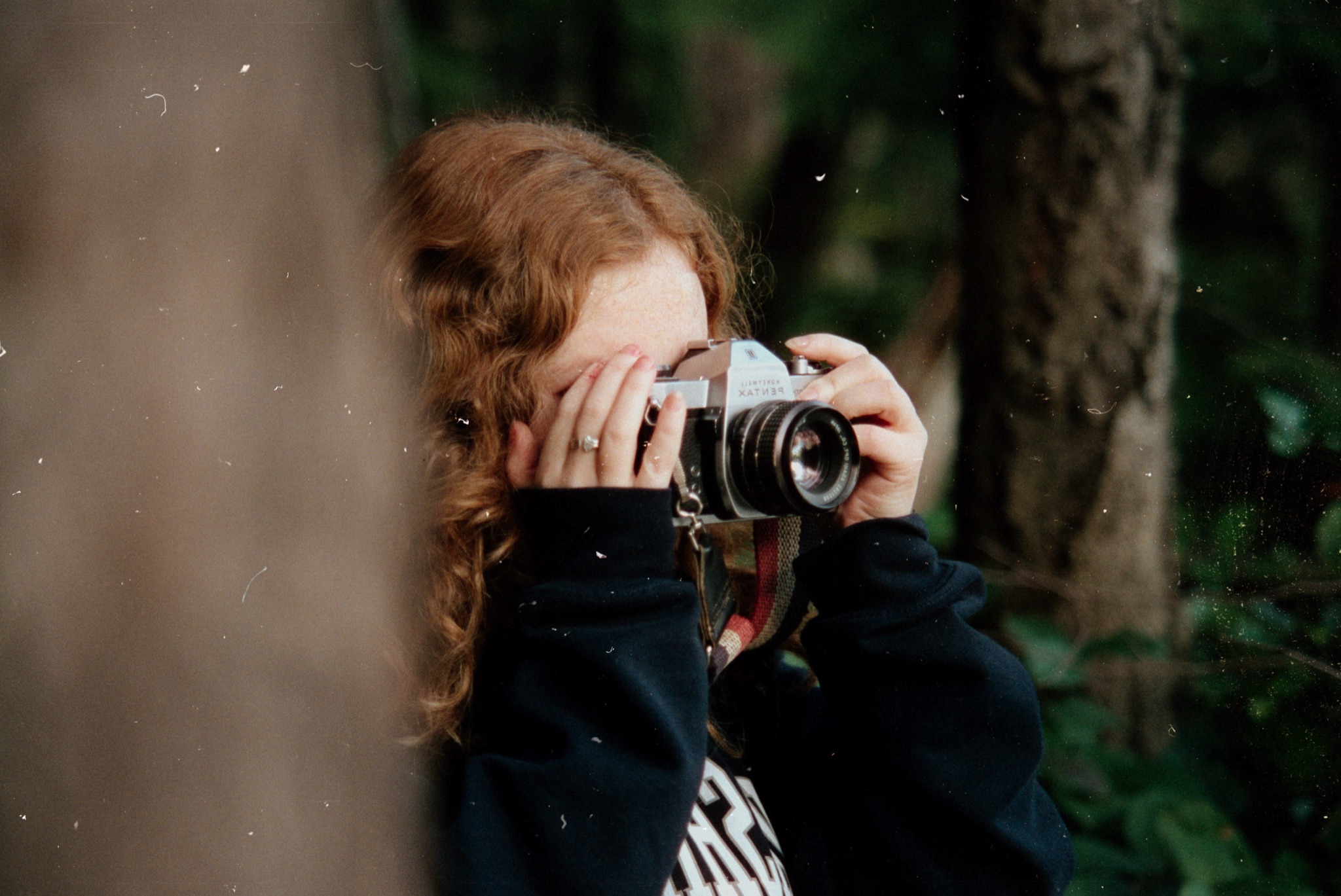
Dust gone, grain intact.
Dust-Off finds dust and scratches with an on-device AI model or your scanner's infrared channel, then fills them in without smoothing the grain around them. Drag across the frame to compare.
EmberFilm pricing:
- EmberFilm Monthly: $8.99, recurring, up to 2 devices, 7-day free trial.
- EmberFilm 1.0 License: $149.99, one-time purchase, up to 2 devices.

Try EmberFilm for free.
Then choose a one-time license or monthly subscription when you're ready.
Try for freeCommon questions
How EmberFilm converts your scans, what it runs on, and how licensing works.
The app
What is EmberFilm?
EmberFilm is a native app for macOS and Windows that turns scanned film into finished photographs. It converts color negative, black-and-white, and slide film scans into positive images, then provides a full darkroom-style editing workflow covering color, tone, curves, print looks, dust removal, and batch export in one standalone application. EmberFilm requires macOS 26 or later on an Apple silicon Mac, or Windows 10 version 17763.0 or higher on an x64 PC.
Is EmberFilm a Lightroom or Photoshop plugin?
No. EmberFilm is a standalone application for macOS and Windows and does not require Lightroom, Photoshop, Capture One, or any plugin host. It reads your scan files directly and exports finished TIFF or JPEG files, so you can use it as your whole film workflow or hand its exports to another editor afterwards.
How does EmberFilm convert a film negative?
EmberFilm converts negatives with a math-driven inversion that simulates darkroom printing, not a generic invert-and-adjust filter. The conversion is physics informed: EmberFilm analyzes each scan to characterize the film itself, then models how that negative would print onto photographic paper, so tone and color follow the behavior of the material rather than arbitrary curves. You choose the film type, press Convert, and the solve runs on your Mac's GPU through Metal in a wide-gamut color-managed pipeline.
Can EmberFilm process an entire roll at once?
Yes. EmberFilm's Roll Conversion analyzes frames from the same roll as a group so they share a consistent baseline, with a choice of roll-level or frame-level analysis. You can also paste one frame's edits onto a multi-selection, save reusable presets, and export the whole project in one pass.
Editing
Can EmberFilm remove dust and scratches from scans?
Yes, in three steps. First, an AI model running entirely on your Mac detects dust across the frame. Second, you refine the resulting mask with a threshold slider and brush and eraser tools. Third, EmberFilm removes the dust, filling the masked areas while preserving the surrounding grain and texture. Your scans never leave your computer and are never used to train any model.
Do I need any other apps to go from scan to finished photo?
No. EmberFilm is built to be the only app a film photographer needs between a raw scan and a finished file, so there is no jumping between programs or paying for extra software to finish a roll. Conversion, color, tone, curves, dust removal, print looks, cropping, and batch export are all included. Everything is non-destructive: your work is saved in an .ember project that stores edits as instructions and links back to your originals, which are never modified or overwritten.
What editing tools does EmberFilm include?
EmberFilm organizes editing into four tabs. Color covers white balance, color density, saturation, vibrance, and advanced cast correction that neutralizes shadows, midtones, and highlights independently. Tone covers brightness, contrast, dynamic range, filmic response, lights, darks, whites, blacks, fade, and separate film, highlight, and shadow density. Finish covers master and per-channel RGB curves, an eight-band color mixer with maskable hue, chroma, and lightness, print looks, and sharpening. Dust-Off covers dust detection and removal. A separate crop mode adds film aspect ratios, rotation, flipping, a straightening ruler, and automatic crop detection.
What film finish looks does EmberFilm support?
EmberFilm includes Frontier, Noritsu, and Kodak print looks, which apply the color signature of a finished lab scan or darkroom print after your main edits. You can also import any standard .cube LUT as a custom look. Every look blends from subtle to full strength with an intensity slider.
Compatibility
What are EmberFilm's system requirements?
On Mac, EmberFilm requires an Apple silicon Mac running macOS 26 (Tahoe) or later. On Windows, it requires an x64 PC running Windows 10 version 17763.0 or higher, and is available from the Microsoft Store. Conversion, editing, dust detection, and export all run on your own computer. An iPad version is in development.
Which film scanners does EmberFilm work with?
EmberFilm works with scan files rather than scanner hardware, so any scanner works as long as it can save an image file. Flatbed scans, dedicated film scanner output, lab scans, and RAW files from DSLR or mirrorless camera scanning are all handled the same way. Import the files and choose the matching film type.
What file formats can EmberFilm import and export?
EmberFilm imports TIFF, JPEG, PNG, HEIC, GIF, BMP, and WebP, plus more than 60 common RAW formats from the major camera makers. It exports TIFF at 8-bit or 16-bit and JPEG at an adjustable quality, in a wide range of color spaces including sRGB and ProPhoto RGB, and can resize on export or keep the original resolution.
Does EmberFilm handle black-and-white and slide film?
Yes. EmberFilm has three film types: Color Negative for standard color negative scans, Positive for slide film and images that are already positive, and Black & White for monochrome negatives. Black-and-white conversions use the monochrome path and hide the color controls that do not apply, and the film type can be applied to an entire roll at once.
Pricing and account
Is there a free trial of EmberFilm?
Yes. Subscription packages that offer a trial give you the complete app free for the trial period before any charge. Create an account at emberfilm.app and choose the free-trial option at checkout. A trial can be used once per customer.
Is EmberFilm a subscription or a one-time purchase?
Both are offered, and you choose whichever fits. Current prices, device allowances, and trial lengths are listed on the pricing section at emberfilm.app. Payments are processed by Stripe.
What is the difference between the subscription and the one-time license?
A subscription renews on a billing cycle, keeps you current as EmberFilm is updated, and can be cancelled at any time. A one-time license is a perpetual grant for the major app version it covers, so it never expires and has no recurring charge. Both include a device allowance.
How many Macs can I use EmberFilm on?
Each package includes a device allowance, shown on its card on the pricing page and under Account, then Entitlements, at emberfilm.app. Your Mac enrolls automatically the first time you sign in to the app on it, so there is no manual activation step.
How do I sign in to EmberFilm on my Mac?
Choose Continue with Browser in the app, then sign in at emberfilm.app with your email and password or with a passkey, and access is handed back to the Mac app. If a purchase is not picked up right away, use the "I Already Purchased" refresh option on the sign-in screen.
How do I cancel an EmberFilm subscription?
Sign in at emberfilm.app, open Account, then Entitlements, and choose Manage to open the Stripe billing portal. A cancelled subscription stays active until the end of the current billing period, and the Entitlements page shows that date.